10 Things You Can Learn Just by Viewing a Website's Source Code
View the source code of a website to uncover its CMS, SEO keywords, analytics setup, schema markup, Open Graph tags, security headers, and more. A practical guide with 10 source code audit techniques.

How to Read Website Source Code
To read website source code, open any browser, press Ctrl + U on a PC or Cmd + Option + U on a Mac, and the raw HTML, CSS, and JavaScript markup appears in a new tab. This raw HTML inspection gives you access to every title tag, meta description, heading tag, alt attribute, canonical tag, structured data block, and script reference that the browser uses to render the page.
Source code is the foundation of every webpage on the internet. Tim Berners-Lee created HTML (Hypertext Markup Language) in 1991, Brendan Eich developed JavaScript in 1995, and Håkon Wium Lie introduced CSS (Cascading Style Sheets) in 1996. These 3 technologies — HTML, CSS, and JavaScript — remain the core markup language trio that every web server delivers to every browser in 2026.
There are 10 specific things you can learn about any website by viewing its source code: the Content Management System (CMS) and frameworks, hidden SEO keywords, developer comments, analytics and tracking scripts, structured data and schema markup, Open Graph tags for social media, third-party script bloat, hreflang tags for international targeting, canonical tag logic, and security headers. Each section below explains what to look for, where to find the code, and why the information matters for SEO, web development, and competitive analysis.
You can view source code using a keyboard shortcut, a browser developer tools panel, or an online tool like the ViewPageSource Analyzer.
How to View Source Code
To view the source code of a website, use one of 3 methods: a keyboard shortcut, the right-click context menu, or the view-source: URL prefix. The method depends on your operating system.
PC
There are 4 ways to view page source code on a Windows or Linux PC:
- Press
Ctrl + Uin Google Chrome, Mozilla Firefox, or Microsoft Edge. A new tab opens with the full raw HTML source. - Right-click any blank area of the webpage and select View Page Source from the context menu.
- Type
view-source:directly before the URL in the address bar (for example,view-source:https://example.com) and press Enter. - Press
F12to open browser developer tools, then click the Elements tab to inspect the live Document Object Model (DOM).
The first 3 methods display the raw HTML markup the server delivered. The fourth method shows the rendered DOM after JavaScript execution — a critical distinction for JavaScript SEO.
Mac
There are 3 ways to view page source code on macOS:
- Press
Cmd + Option + Uin Google Chrome, Apple Safari, or Microsoft Edge. Safari requires enabling developer features first: open Safari Settings → Advanced and check Show features for web developers. - Press
Cmd + Uin Mozilla Firefox. - Right-click the page and select View Page Source (Chrome, Firefox, Edge) or Show Page Source (Safari).
For a full walkthrough on desktop, mobile, Android, and iPhone source viewing, read the complete view page source guide.
1. The Core Technology Stack (CMS & Frameworks)
The source code reveals the exact CMS and frontend framework a website runs on. Search for the <meta name="generator" tag in the <head> section. This tag often contains the CMS name and version number.
There are 3 common patterns to look for:
- CMS identification: A
<meta name="generator" content="WordPress 6.5">tag confirms the site runs on WordPress. Drupal and ExpressionEngine leave similar generator tags. - Frontend framework detection: File paths like
_next/static/indicate Next.js, whilestatic/js/main.hash].jsindicates a [React single-page application (SPA). - Theme and plugin clues: WordPress sites expose theme directory paths (for example,
/wp-content/themes/theme-name/) and plugin paths (/wp-content/plugins/plugin-name/) in stylesheet and script references.
Knowing a competitor's technology stack helps you benchmark performance and estimate development costs. For a detailed competitor analysis process, read our guide on how to spy on your competitor's tech stack.
2. Hidden SEO Keywords (Meta Keywords & Comments)
The source code exposes the exact keywords a website targets, including terms hidden from the visible page. Search engines officially stopped using the meta keywords tag for ranking years ago, but many sites still include them — giving you a free list of their target terms.
There are 3 places to find keyword targeting signals in source code:
- Meta keywords tag:
<meta name="keywords" content="view source code, HTML inspection, SEO audit">lists the phrases the site owner considers primary targets. - Image alt attributes: The
alttext on images reveals how the site optimizes for semantically related keywords. See our guide on alt text and SEO for proper alt attribute usage. - Link title attributes: The
title=""attribute on anchor tags shows additional keyword context the site associates with its internal and external links.
Review these 3 locations together to build a full picture of any competitor's keyword strategy.
3. Developer Comments (The Unfiltered Truth)
Developer comments in source code reveal internal notes, known bugs, agency names, deployment dates, and upcoming features. These comments are wrapped in <!-- comment --> tags and are invisible on the rendered page but fully readable in the source.
There are 4 types of information commonly found in HTML comments:
- Known bugs: Comments like
<!-- TODO: Fix mobile nav overlap on iOS 18 -->expose unresolved issues. - Agency and team credits: Comments like
<!-- Site built by Agency XYZ, 2025 -->identify the development team. - Feature roadmaps: To-do lists such as
<!-- Phase 2: Add product comparison table -->reveal planned features. - Version and deployment metadata: Comments containing dates, build hashes, or internal version numbers indicate the deployment frequency and release process.
These review comment metadata entries are the raw, unfiltered notes that developers write for themselves — not for the public. But the view-source: command makes them visible to anyone.
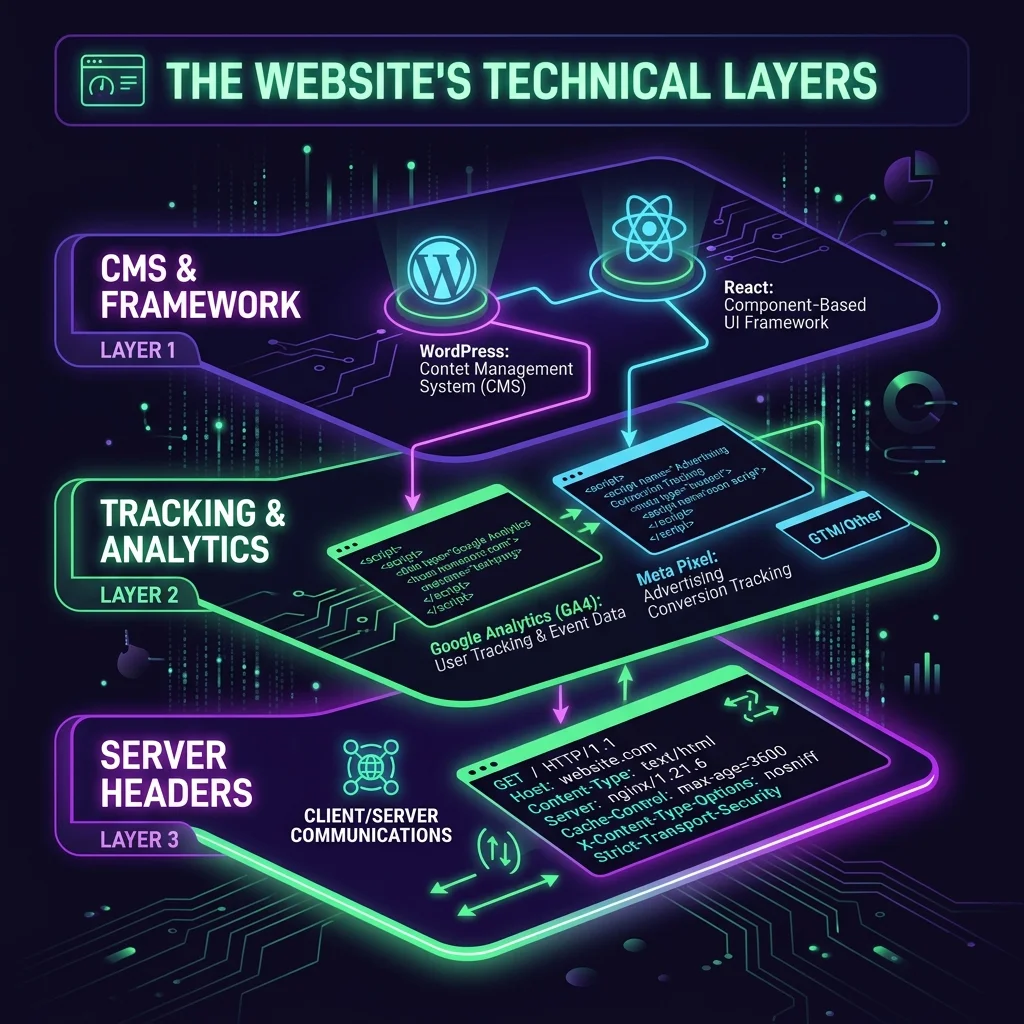
4. Analytics and Tracking Sophistication
The source code shows every analytics and tracking tool installed on a website. Search for <script> tags containing identifiers like gtag, fbq, hj, or clarity to determine the site's tracking sophistication.
There are 4 tiers of analytics maturity visible in source code:
- Google Analytics 4 (GA4): Look for
gtag('config', 'G-XXXXXXX'). This is the baseline standard. GA4 tracks pageviews, events, and user behavior through the Google tag. - Facebook Pixel / Meta Pixel: Look for
fbq('init', 'XXXXXXX'). This confirms active paid social advertising on Facebook and Instagram. - Hotjar or Microsoft Clarity: Look for script references to
hotjar.comorclarity.ms. These tools record user sessions, heatmaps, and scroll behavior — a sign of advanced user behavior tracking. - Custom event tracking: Look for
gtag('event', 'custom_event_name')ordataLayer.push()calls. Custom event tracking with specific event names (for example,form_submit,pricing_click,video_play) indicates high-level marketing maturity.
You can spot these hidden tracking pixels directly in the source code, or use the ViewPageSource Analyzer to categorize all scripts automatically.
5. Structured Data & Schema Implementation
Structured data in source code controls how Google displays a website in search results. Search for <script type="application/ld+json"> blocks to find the JSON-LD structured data that communicates directly with search engine crawlers.
There are 5 common schema types visible in source code:
- Review Schema: Generates star ratings beneath the search result. Look for
"@type": "Review"or"@type": "AggregateRating". - FAQ Schema: Displays expandable question-and-answer blocks on the SERP, taking up more screen real estate. Look for
"@type": "FAQPage". - Organization Schema: Links the business name, logo, and social profiles into a unified knowledge panel entry. Look for
"@type": "Organization". - Product Schema: Shows price, availability, and review counts directly in search results. Look for
"@type": "Product". - Article Schema: Provides headline, author, and publish date metadata for news and blog content. Look for
"@type": "Article".
For a hands-on implementation walkthrough, read the Schema Markup 101 guide to rich snippets.
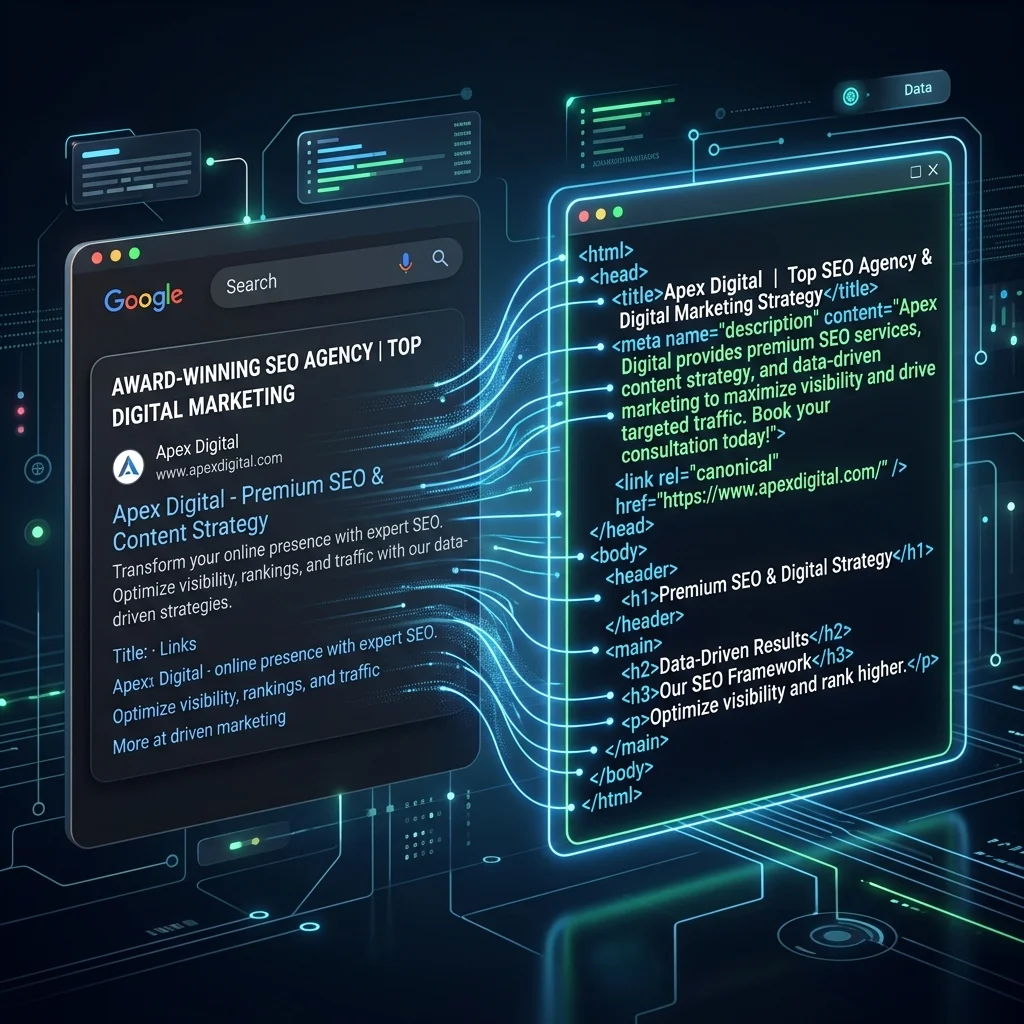
Source Code Title Tags
The title tag in source code is the single most important on-page SEO element. It appears between <title> and </title> in the <head> section and controls the clickable headline in Google search results.
There are 3 title tag audit checks to perform when viewing source code:
- Length: Google displays 50–60 characters of a title tag. Count the characters between the
<title>tags. Anything beyond 60 characters gets truncated with an ellipsis. - Keyword placement: The primary keyword should appear within the first 30 characters of the title tag. Source code reveals the exact character position.
- Uniqueness: Compare title tags across multiple pages of the same website. Duplicate title tags signal poor on-page SEO and cause ranking confusion for search engines.
The raw HTML source shows the exact title tag text, while the browser tab may display a shortened version. Use Ctrl + U (PC) or Cmd + Option + U (Mac) to confirm the full title tag content.
Meta Descriptions in Source Code
The meta description tag in source code controls the 2-line summary beneath the title in search results. Find the meta description by searching for <meta name="description" content="..."> in the <head> section.
There are 3 meta description audit checks to perform:
- Length: Google displays 150–160 characters of a meta description. Descriptions shorter than 120 characters waste available SERP space. Descriptions longer than 160 characters get cut off.
- Call-to-action language: Effective meta descriptions contain action words (for example, "Learn", "Get", "Try", "Compare") that increase click-through rates.
- Keyword inclusion: The primary keyword phrase should appear naturally within the description. Google bolds matching terms in the search result snippet, which draws the searcher's eye.
Meta descriptions do not directly affect rankings, but they directly affect click-through rate (CTR) — and CTR affects rankings. View the source code to verify the meta description matches the page's actual content.
H1 Headings in Source Code
The H1 heading tag in source code defines the primary topic of the page for both users and search engines. Search for <h1> in the source code. Every page should contain exactly 1 H1 tag.
There are 3 H1 heading audit checks to perform:
- Count: Verify the page has exactly 1
<h1>tag. Multiple H1 tags dilute topic relevance and confuse search engine parsers. - Keyword alignment: The H1 text should contain the page's primary keyword and match the search intent of the title tag.
- Heading hierarchy: After the H1, check that subheadings use
<h2>,<h3>, and<h4>tags in proper descending order. Skipping heading levels (for example, jumping from H1 to H3) creates accessibility and SEO issues.
For a full breakdown of heading tag best practices, read how to use H1-H6 header tags for search visibility.
Nofollows in Source Code
Nofollow attributes in source code control which links pass ranking authority (PageRank) to other websites. Search for rel="nofollow" on anchor tags (<a>) and <meta name="robots" content="nofollow"> in the <head> section.
There are 3 nofollow signals to audit in source code:
- Link-level nofollow:
<a href="https://example.com" rel="nofollow">tells search engines not to pass link equity to the destination URL. Sites use nofollow on paid links, user-generated content (UGC), and untrusted external references. - Page-level nofollow:
<meta name="robots" content="nofollow">applies nofollow to every link on the entire page. - UGC and sponsored variants: Google introduced
rel="ugc"for user-generated content andrel="sponsored"for paid placements. Look for these in comment sections and sponsored post templates.
Auditing nofollow usage reveals how a website manages its link equity distribution. Competitor sites that nofollow their outbound links aggressively are hoarding PageRank — a strategy you can confirm only by viewing the source code.
For related link audit techniques, read our internal linking strategies guide.
Image Alt Tags in Source Code
Image alt tags in source code provide text descriptions that search engines use for image indexing and accessibility screen readers use for visually impaired users. Search for <img tags and check the alt="" attribute on each image.
There are 3 image alt tag audit checks:
- Missing alt attributes: Images without
altattributes are invisible to search engines and fail Web Content Accessibility Guidelines (WCAG) compliance. The World Wide Web Consortium (W3C) requires alt text on all meaningful images. - Keyword-stuffed alt text: Alt text like
alt="best SEO tool free SEO audit SEO checker online"is over-optimized and violates Google's webmaster guidelines. Effective alt text describes the image content in 5–15 words. - Decorative image handling: Decorative images (borders, spacers, backgrounds) should use an empty
alt=""attribute, not a missing attribute. The empty alt signals to screen readers that the image is intentionally decorative.
For a complete alt text optimization framework, read the alt text for images SEO guide.
6. Social Media Strategy (Open Graph Tags)
Open Graph (OG) tags in source code control how a website appears when shared on Facebook, LinkedIn, and X (Twitter). Search for <meta property="og: in the <head> section to find these tags.
There are 4 Open Graph tags to audit:
- og:title: The headline displayed on social platforms. This should differ from the SEO title tag — social titles should be shorter and more direct.
- og:description: The summary text below the headline on social cards. Effective og:description text is more conversational than the SEO meta description.
- og:image: The image URL displayed in the social card. Missing og:image tags result in blank or randomly selected thumbnails when the URL is shared.
- og:type: Defines the content type (for example,
article,website,product). This affects how Facebook and LinkedIn categorize and display the shared content.
X (Twitter) uses its own twitter:card, twitter:title, and twitter:image meta tags, which may differ from the OG tags. Check both sets in the source code to audit the full social media strategy.
For a detailed OG tag implementation guide, read the impact of Open Graph tags on social media traffic.
7. Third-Party Script Bloat
Every external <script src="..."> tag in source code adds a network request that slows page load time. Count the number of unique external domains referenced in script tags. Sites with 15 or more external script domains suffer from third-party bloat.
There are 3 categories of third-party scripts to look for:
- Analytics and tracking: Google Analytics, Meta Pixel, Hotjar, Clarity, and similar tracking tools.
- Advertising networks: Google AdSense (
pagead2.googlesyndication.com), ad exchanges, and header bidding scripts. - Third-party widgets: Chat widgets, social share buttons, embedded video players, and font loaders.
Each external script adds DNS lookup time, TCP connection time, and JavaScript parsing time. A single slow third-party script can block the entire page rendering pipeline, increase Time to First Byte (TTFB), and degrade Core Web Vitals scores.
Use the ViewPageSource Analyzer to see a categorized list of all external scripts on any URL. For a full audit process, read how to audit third-party scripts.
8. Hreflang Tags (International Strategy)
Hreflang tags in source code reveal which countries and languages a website targets. Search for <link rel="alternate" hreflang=" in the <head> section. Each hreflang tag specifies a language code (and optional country code) paired with the URL of the translated page.
There are 3 hreflang audit checks:
- Self-referencing hreflang: Every page that uses hreflang tags must include a self-referencing tag pointing to itself. Missing self-references cause search engines to ignore the entire hreflang set.
- Return links: Hreflang tags must be reciprocal. Page A's hreflang pointing to Page B means Page B must also have an hreflang tag pointing back to Page A.
- x-default tag: The
hreflang="x-default"tag specifies the fallback URL for users whose language and country do not match any hreflang variant.
Hreflang misconfiguration is one of the most common causes of international duplicate content problems. For a complete implementation guide, read how to build a global brand with multilingual SEO and hreflang.
9. Canonical Logic (Handling Duplicates)
The canonical tag in source code tells search engines which version of a page is the official one. Search for <link rel="canonical" href="..."> in the <head> section. Every indexable page should have exactly 1 canonical tag pointing to its preferred URL.
There are 4 canonical tag problems to look for:
- Missing canonical tags: Pages without a canonical tag risk duplicate content penalties, especially on e-commerce sites with URL parameters (for example,
?color=red&size=large). - Self-referencing canonicals: Each page should canonicalize to itself. A page at
https://example.com/pageshould have<link rel="canonical" href="https://example.com/page">. - Cross-domain canonicals: Some sites canonicalize content to a different domain (for example, syndicated articles pointing back to the original publisher). Verify the target URL returns a 200 HTTP status code.
- HTTP vs HTTPS mismatch: A canonical tag pointing to
http://on an HTTPS site sends conflicting signals to search engines.
Missing or misconfigured canonical tags cause organic traffic loss due to duplicate content dilution. For a full canonical tag strategy, read what canonical tags are and why you need them.
Verify That Your Analytics Are Installed Properly
To verify analytics installation, view the page source code and search for the tracking script identifier. Proper analytics installation requires the tracking code to appear in the <head> section of every page on the website.
There are 4 verification steps:
- Search for the GA4 measurement ID: Press
Ctrl + F(PC) orCmd + F(Mac) in the source view and search forG-followed by 10 alphanumeric characters (for example,G-ABC1234567). The measurement ID should appear inside agtag('config', 'G-...')call. - Confirm script placement: The Google tag script (
https://www.googletagmanager.com/gtag/js) should load in the<head>section, not at the bottom of the<body>. Head placement ensures tracking fires before the user interacts with the page. - Check for duplicate installations: Search for all instances of
gtag(in the source code. Multiplegtag('config')calls with different measurement IDs cause inflated pageview counts and unreliable session data. - Verify Facebook Pixel / Meta Pixel: Search for
fbq('init'and confirm the pixel ID matches the Meta Business Suite configuration. The pixel script should load before the closing</head>tag.
Use the ViewPageSource Analyzer to instantly confirm analytics installation across any URL without opening browser dev tools.
10. Security Headers and HTTPS Readiness
Security headers protect a website against cross-site scripting (XSS), clickjacking, and data interception attacks. These headers are part of the HTTP response headers — not visible in the HTML source — but you can inspect them using browser developer tools (F12 → Network tab → click the document request → Headers tab) or by using an online security header checker.
There are 3 critical security headers to check:
- Content Security Policy (CSP): Defines which domains can serve scripts, styles, images, and other resources. A strict CSP prevents XSS attacks by blocking unauthorized inline scripts. Read the full CSP guide for implementation details.
- HTTP Strict Transport Security (HSTS): Forces all connections over HTTPS. Without HSTS, attackers can intercept the initial HTTP request before the redirect to HTTPS occurs. HTTPS is a confirmed Google ranking factor.
- X-Frame-Options: Prevents the website from being embedded inside an
<iframe>on another domain — the primary defense against clickjacking attacks.
For a complete security header checklist, read 10 security headers every website must have.

Conclusion
Viewing the source code of a website is the fastest way to audit the technical health of any digital project. The source code reveals the CMS and frameworks, hidden SEO keywords, developer comments, analytics and tracking scripts, structured data, Open Graph tags, third-party script bloat, hreflang tags, canonical logic, and security headers. Each of these 10 elements directly affects search engine ranking, user experience, site performance, and security posture.
The raw HTML that the server delivers to the browser never lies. Title tags, meta descriptions, H1 headings, nofollow attributes, image alt tags, and analytics scripts are all visible in the source code and verifiable in seconds. Whether you are a business owner vetting a new developer, an SEO professional auditing a competitor, or a web developer debugging production issues, the source code is the ground truth.
Use the ViewPageSource Analyzer to get a complete breakdown of all 10 elements — CMS detection, meta tag analysis, schema validation, script categorization, and security headers — for any URL in seconds. No browser extensions, no bookmarklets, no dev tools setup required.
Ready to optimize your site?
View the source code of any website instantly — paste a URL and get a full technical audit in seconds → Try the free ViewPageSource Analyzer
About the Creator: Hassan
WordPress Developer | 2 Years Experience
Hassan is the lead developer and visionary behind ViewPageSource. As a Computer Science student and WordPress specialist with 2 years of experience in custom theme and plugin development, he built this tool to bring transparency to the web. Hassan focuses on creating high-performance, developer-centric applications that help others understand and audit the technology stacks behind their favorite websites.
Ready to optimize your site?
Use our professional tools to analyze your source code and technical SEO health in seconds.
Start for Free →